Push Button with ESP32 DOIT DevKit v1 – Step-by-Step Tutorial

Introduction
A Push Button is a simple input device used to control circuits. When pressed, it makes a connection between its terminals and sends a digital signal to the ESP32.
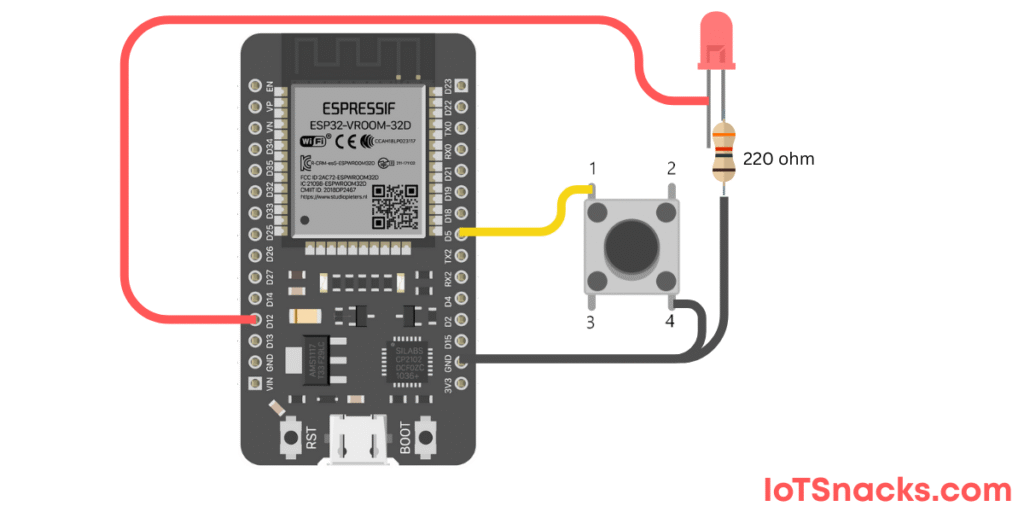
In this tutorial, we’ll use a Push Button connected to GPIO 5 of ESP32 DOIT DevKit v1. When the button is pressed, the onboard LED (GPIO 2) will turn ON, and when released, the LED will turn OFF.
Components Required
- ESP32 DOIT DevKit v1
- Push Button (normally open type)
- 10kΩ resistor (pull-down)
- Breadboard and jumper wires
- USB cable
Circuit Diagram
- Push Button one side → GPIO 5
- Push Button other side → 3.3V
- 10kΩ resistor between GPIO 5 and GND (acts as pull-down resistor)
- LED → GPIO 12
⚠️ Note: ESP32 has internal pull-up and pull-down resistors. For simplicity, we will use the internal pull-down in code (no external resistor required).
Arduino Code
// Push Button with ESP32 DOIT DevKit v1
// Button at GPIO 5, Onboard LED at GPIO 2

int buttonPin = 5;   // Push Button connected to GPIO 5
int ledPin = 12;      //  LED at GPIO 12
int buttonState = 0; // Variable to store button state

void setup() {
  pinMode(buttonPin, INPUT_PULLDOWN); // Use internal pull-down resistor
  pinMode(ledPin, OUTPUT);            // Set LED as output
}

void loop() {
  buttonState = digitalRead(buttonPin); // Read button input

  if (buttonState == HIGH) {
    digitalWrite(ledPin, HIGH); // Turn ON LED when button pressed
  } else {
    digitalWrite(ledPin, LOW);  // Turn OFF LED when button released
  }
}
Step-by-Step Code Explanation
- Define Pins
int buttonPin = 5;
int ledPin = 12;
Assign GPIO 5 for button and GPIO 12 for onboard LED.
Setup Function
pinMode(buttonPin, INPUT_PULLDOWN);
pinMode(ledPin, OUTPUT);
INPUT_PULLDOWNenables ESP32’s internal pull-down resistor.- LED is set as an output.
Loop Function
buttonState = digitalRead(buttonPin);
if (buttonState == HIGH) { ... }
Reads the button state.
If pressed (HIGH), LED turns ON.
If not pressed (LOW), LED turns OFF.
Output
- When you press the push button, the ESP32’s onboard LED (GPIO 12) will light up.
- When you release the button, the LED will turn off.
Real-Life Applications
- User Inputs → switches in appliances.
- Reset Buttons → in microcontrollers/devices.
- Control Systems → manual ON/OFF switch for IoT devices.
- Game Controllers → button-based input actions.
Troubleshooting
| Problem | Cause | Solution |
|---|---|---|
| LED not responding | Wrong GPIO wiring | Ensure button is connected to GPIO 5 |
| LED always ON | No pull-down resistor | Use INPUT_PULLDOWN or external 10kΩ resistor |
| LED flickers randomly | Button bouncing | Use software debouncing (future tutorial) |
| Wrong LED | Using external LED without resistor | Add 220Ω resistor for external LED |
Can I use an external LED instead of onboard LED?
Yes, connect an LED to any GPIO (with a 220Ω resistor) and update the code.
Why use INPUT_PULLDOWN instead of external resistor?
ESP32 has internal pull-up/pull-down resistors, so no extra components needed.
My button is always HIGH, why?
Check if you accidentally connected it to 3.3V without pull-down.
How to avoid flickering or multiple signals on button press?
You can use debouncing techniques in hardware (capacitor) or software (code delay/filter).
Can I connect multiple buttons?
Yes, you can connect multiple buttons to different GPIOs and read them separately.